How to Use AI Virtual Staging?
3 min readLast updated: 2026-04-14
The AI Virtual Staging feature allows you to virtually furnish empty rooms with different styles. This service works only on interior room photos (living rooms, bedrooms, kitchens, bathrooms, dining rooms) and does not work on exterior property images.
Illustrative image
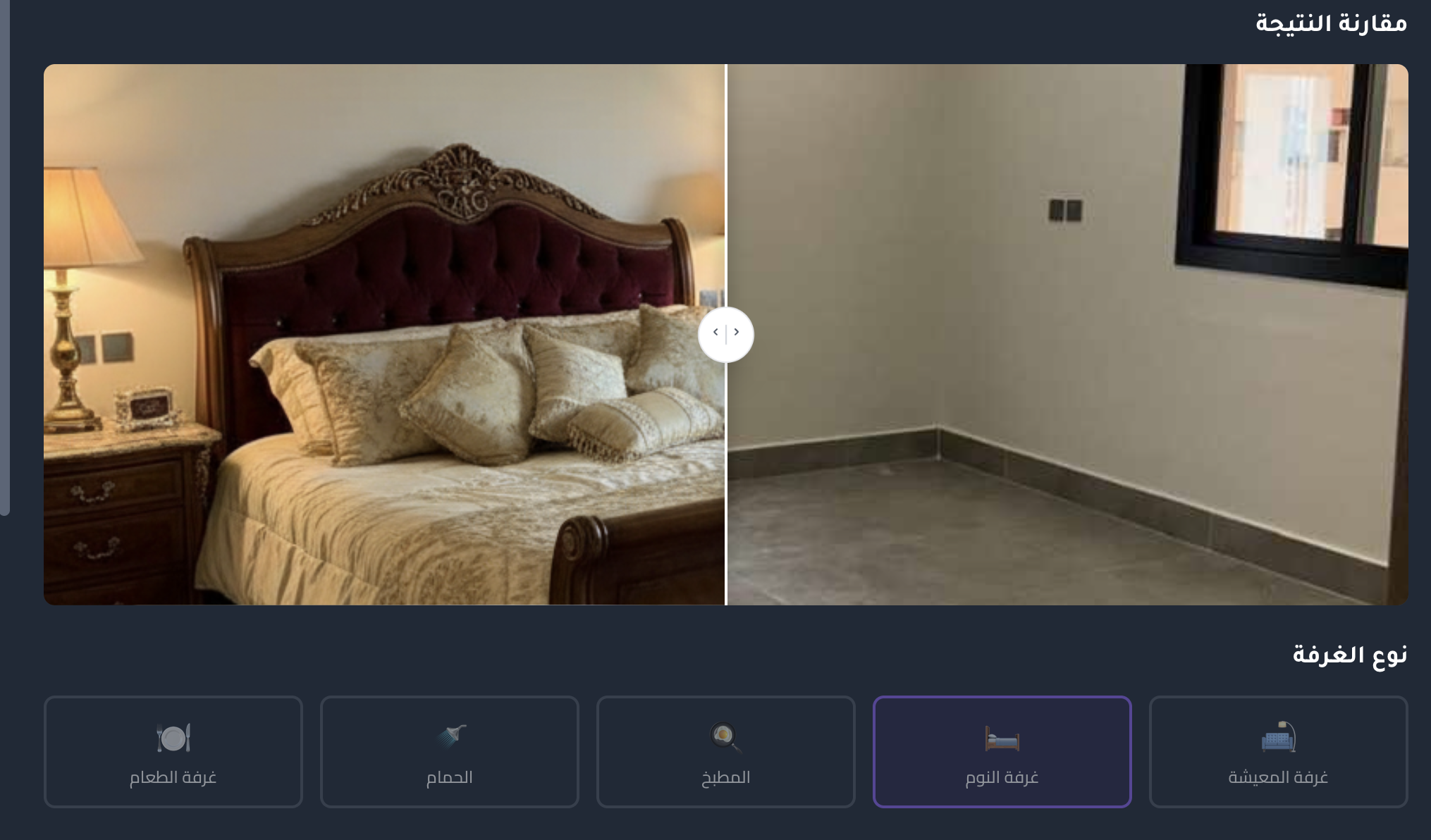
The image shows a side-by-side comparison between the original photo (before) and the staged photo (after), along with room type and staging style options.
Steps to Use
- 1Open the property listing — Go to any listing page that contains interior room photos
- 2Click the photo — Click any interior photo to enlarge it in full-screen view mode
- 3Select the room type — Choose the room type from the available options
- 4Choose the staging style — Pick the style that suits you from the list
- 5Press "Update" — To start the AI staging process
- 6See the result — Wait a few seconds and the result will appear as a side-by-side comparison between the original and the staged image
Supported Room Types
- Living Room
- Bedroom
- Kitchen
- Bathroom
- Dining Room
Available Staging Styles
- Modern — Clean lines and neutral colors with bold accents
- Classic — Traditional elegant furniture with warm rich colors and ornate details
- Minimalist — Essential furniture only with open spaces and calm neutral colors
- Luxury — High-end designer furniture with premium materials like marble and gold accents
- Scandinavian — Light wood furniture with white and pastel colors
- Bohemian — Eclectic mix of patterns with warm earthy tones and vibrant accents
Important Notes
The service only works on interior photos. If the image is exterior (building facade, garden, street), the staging feature will not work.
You can try different styles on the same image for comparison and pick the best fit.