How to Add a Property Request?
Before You Start
- You must have an active account on Raghdan platform
- Determine the area and specifications you're looking for
What Is a Property Request?
A property request allows you to publish your request on Raghdan platform for all registered real estate marketers to see. When a marketer finds a property that matches your request, they'll contact you directly and present suitable options. Your request appears in the Property Requests section on the website and is visible to all marketers.
Steps
Step 1: Press the "Services" Button
From the top menu bar.

Step 2: Select "Request Your Property"
From the dropdown menu, press "Request Your Property".
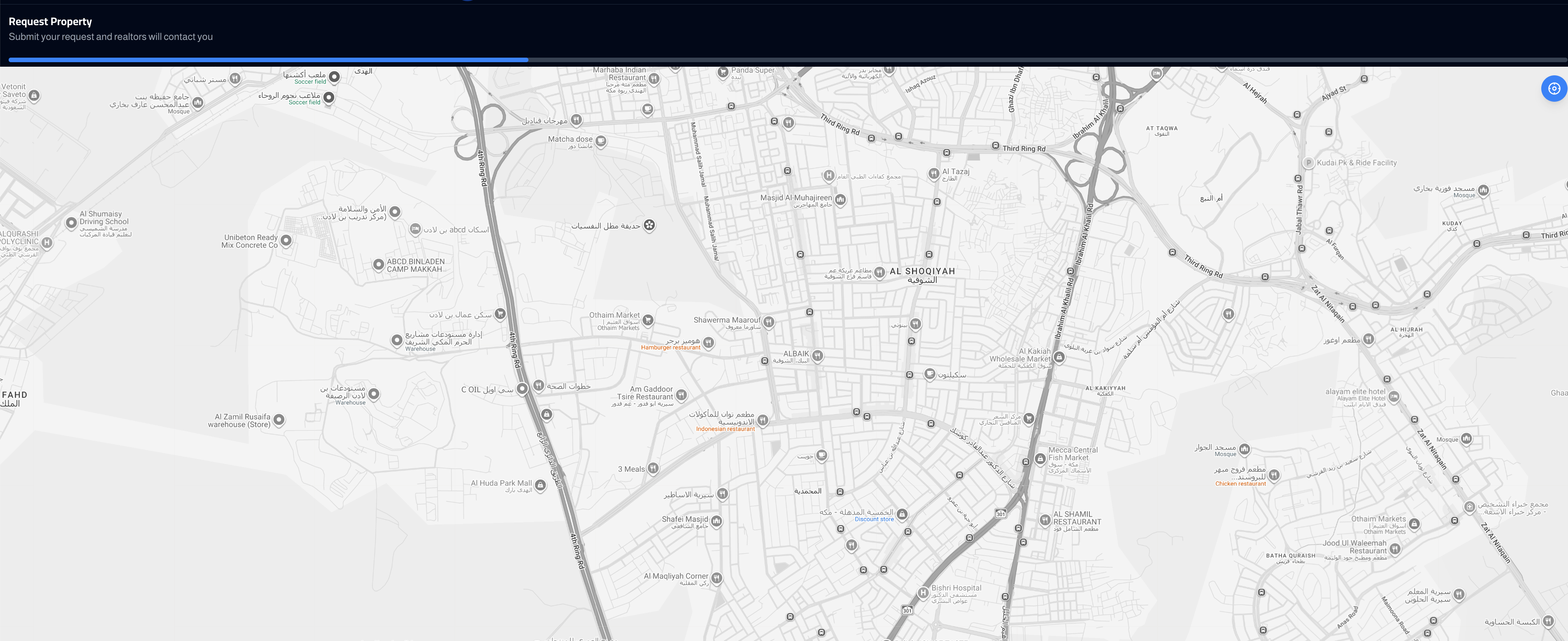
Step 3: Select the Location on the Map
An interactive map will appear. Select the location where you're looking for a property. You can:
- Use the location button to automatically detect your current location
- Or manually move the map and select the area you want to search in

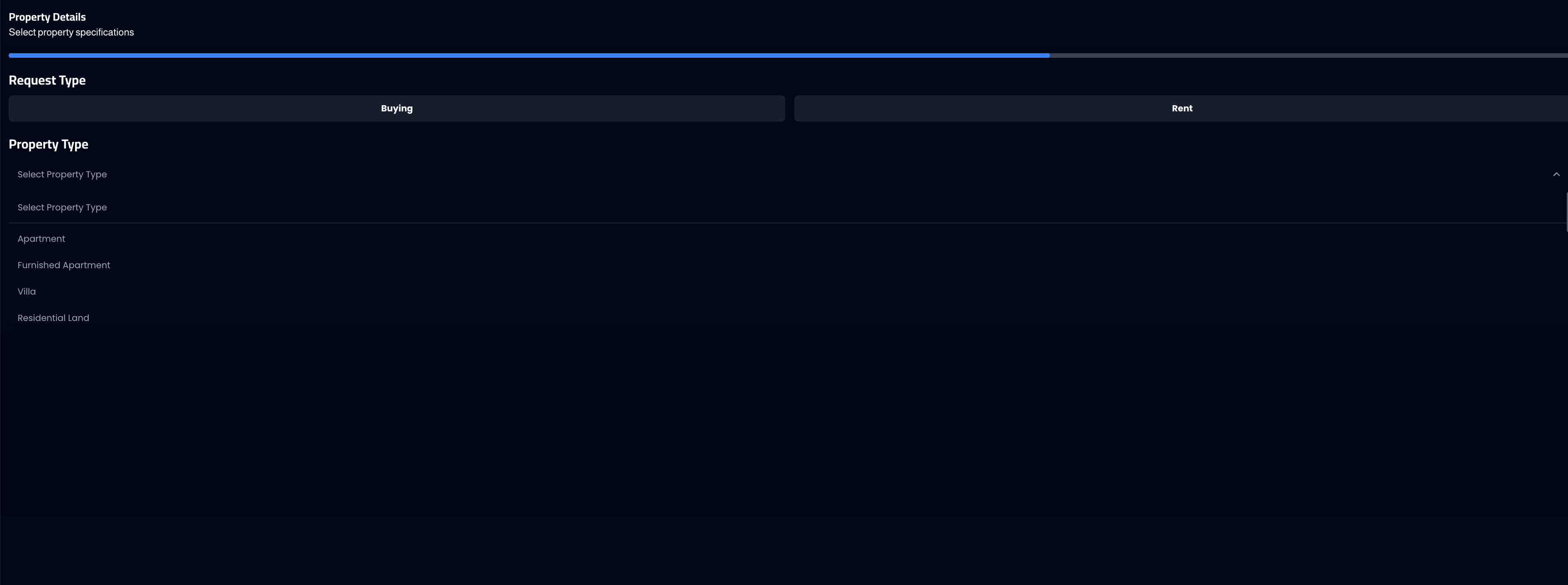
Step 4: Specify Property Details
After selecting the location, move to the next step and specify the required property features:
Part One:
- Request Type: Buy or Rent
- Property Type: Residential apartment, furnished apartment, villa, residential land, and more
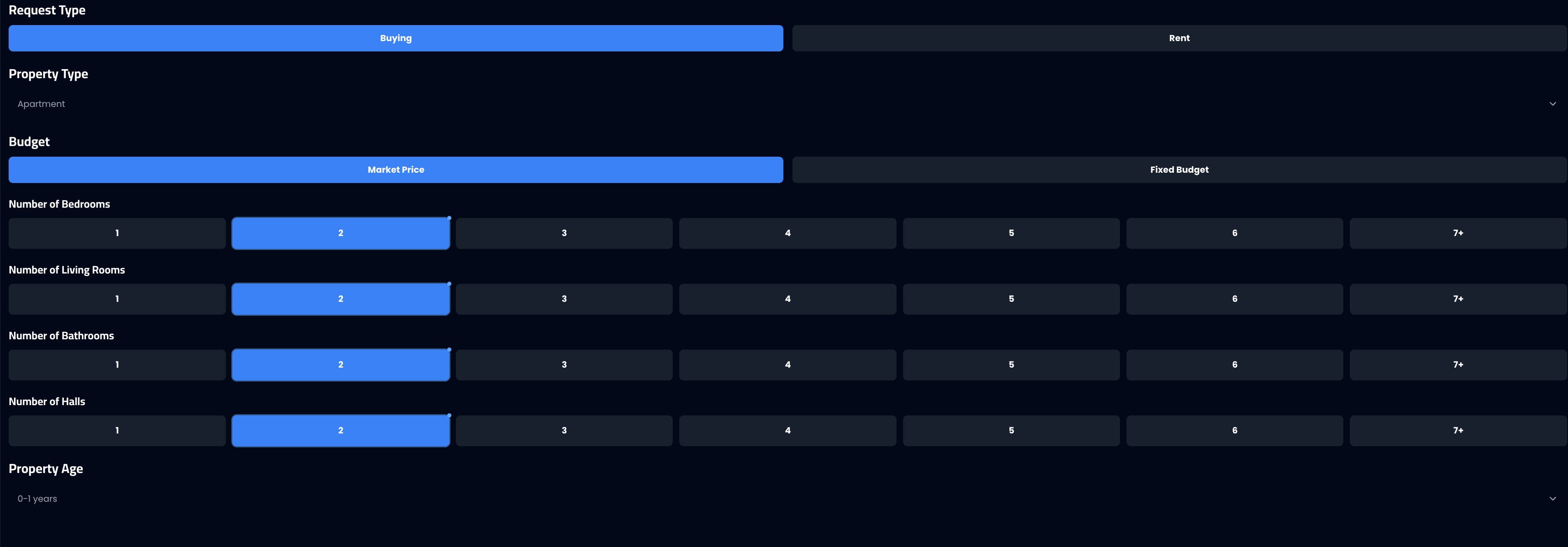
Part Two:
- Budget: Set your budget or choose "Market Price"
- Number of Bedrooms: Select the appropriate number
- Number of Living Rooms: Select the appropriate number
- Number of Bathrooms: Select the appropriate number
- Number of Halls: Select the appropriate number
- Property Age: e.g., 0-1 years, 1-5 years, etc.
- Payment Method: Monthly, yearly, etc.
- Housing Type: Single, Family
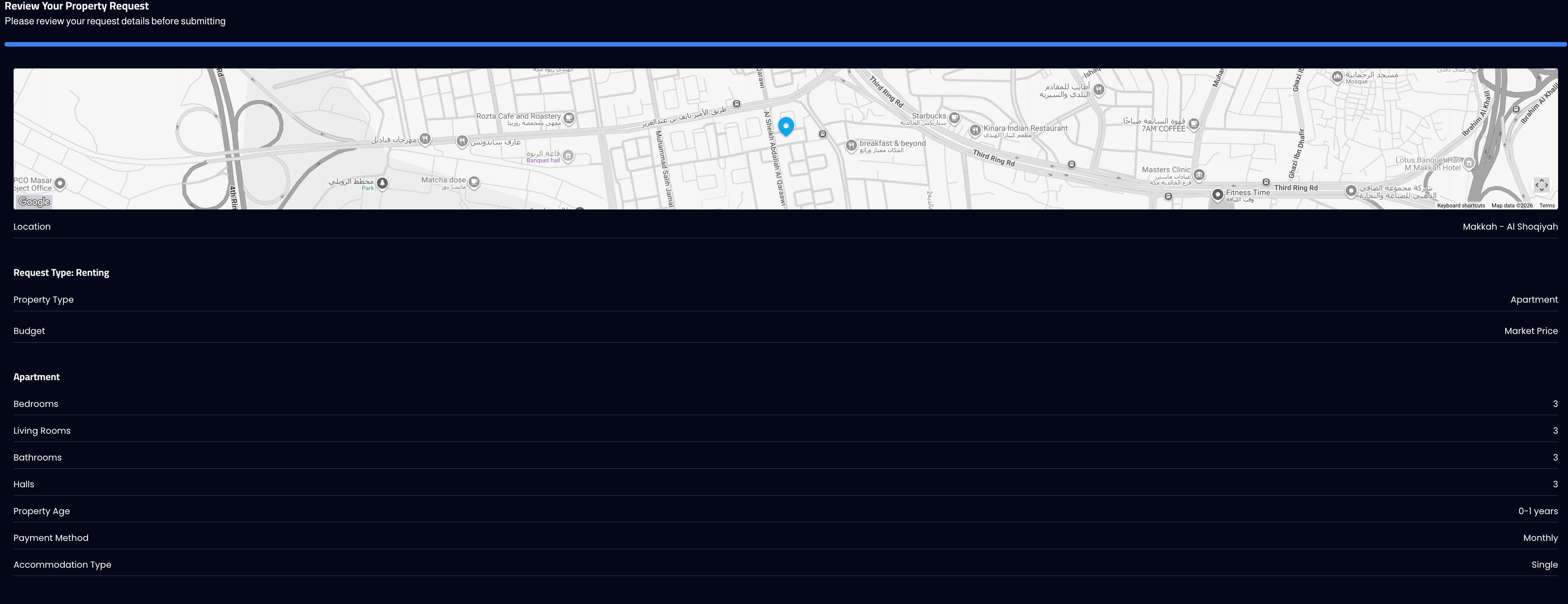
Step 5: Review and Submit
In the final step, a "Review Property Request" page will display all the details you entered:
- Location on the map
- Request type and property type
- Budget
- Number of rooms, halls, and bathrooms
- Property age, payment method, and housing type
Review the details, and if you're satisfied press "Submit". If you want to change anything, press "Previous" to go back and edit.
What Happens After Publishing?
- Your request appears in the Property Requests section on the website
- All registered real estate marketers can see your request
- A marketer who finds a matching property will contact you directly
- Your request is also automatically published on social media platforms for wider reach
Important Notes
Make sure to select the location accurately on the map — the more precise, the better the offers you'll receive.
Choose realistic specifications that match your budget.
You can create multiple property requests with different specifications.
Property requests expire automatically after a period — you can renew them if you haven't found a suitable property.
Common Issues
- Request doesn't appear after publishing: Wait a few minutes for the list to update.
- No one contacted me: Make sure your specifications are realistic and available in the selected area.
- I want to edit the request after publishing: Currently, requests cannot be edited after submission — you can create a new request.