How to Add a Virtual Tour?
Before You Start
- You must have an active account with Nafath verification
- You must have a virtual tour link ready from a supported platform
- Adding a virtual tour is optional and not required
What Is a Virtual Tour?
A virtual tour is an interactive 360° experience that allows potential buyers or tenants to explore the property from inside and outside as if they were physically there. You can create a virtual tour using specialized apps and then add the link on Raghdan platform.
Where Do I Get a Tour Link?
You can create a virtual tour using one of the following platforms:
- Kuula — `https://kuula.co/share/...` or `https://kuula.co/post/...`
- Matterport — `https://my.matterport.com/show/?m=...`
- Any other 360° tour platform that provides a sharing link
Steps
Step 1: Press the "Services" Button
From the top menu bar.

Step 2: Select "Add Listing"
A dropdown menu will appear, press "Add Listing".

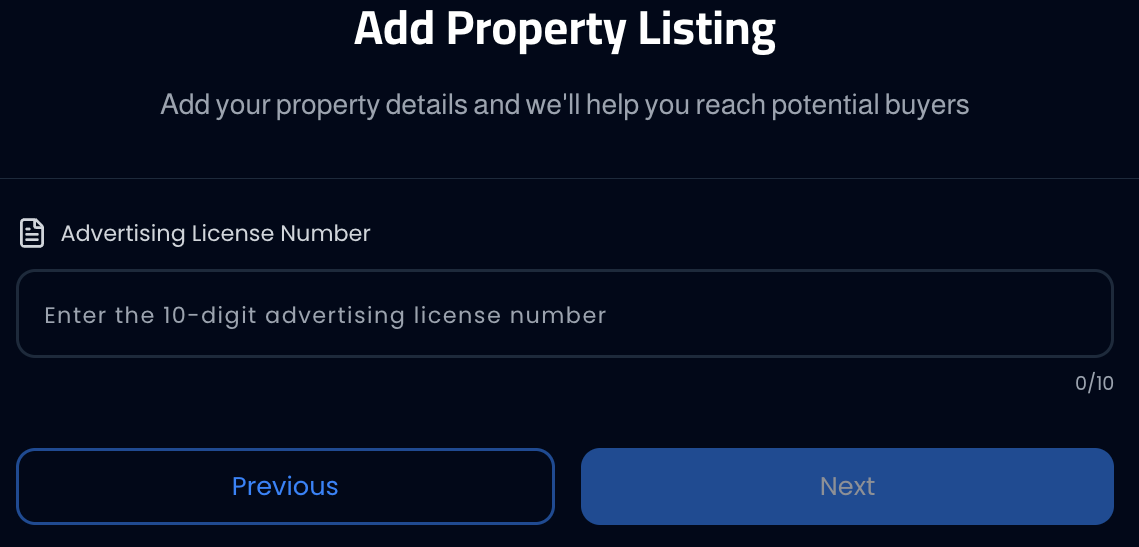
Step 3: Enter the Advertising License Number
Enter the number and wait for verification. The license will be matched from REGA with your national ID and Fal license. After successful verification, you'll move to the media upload stage.
Step 4: Press "Add Virtual Tour"
From the button bar on the "Property Photos" page, press the third button "Add Virtual Tour (optional)".

Step 5: Enter the Tour Link
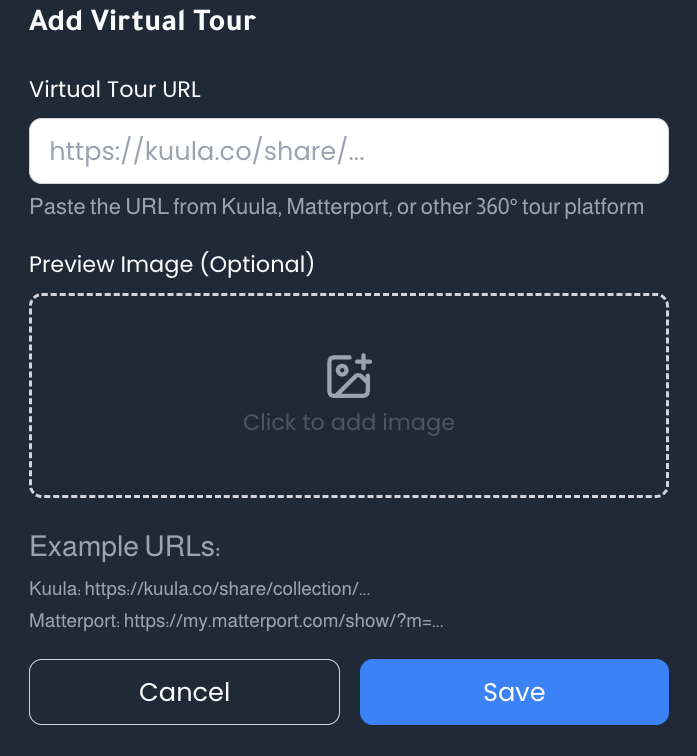
A dialog will appear titled "Add Virtual Tour" containing:
- Virtual Tour Link: Paste the link from Kuula, Matterport, or any 360° tour platform
- Preview Image (optional): You can add a preview image that appears before opening the tour
Step 6: Preview and Save
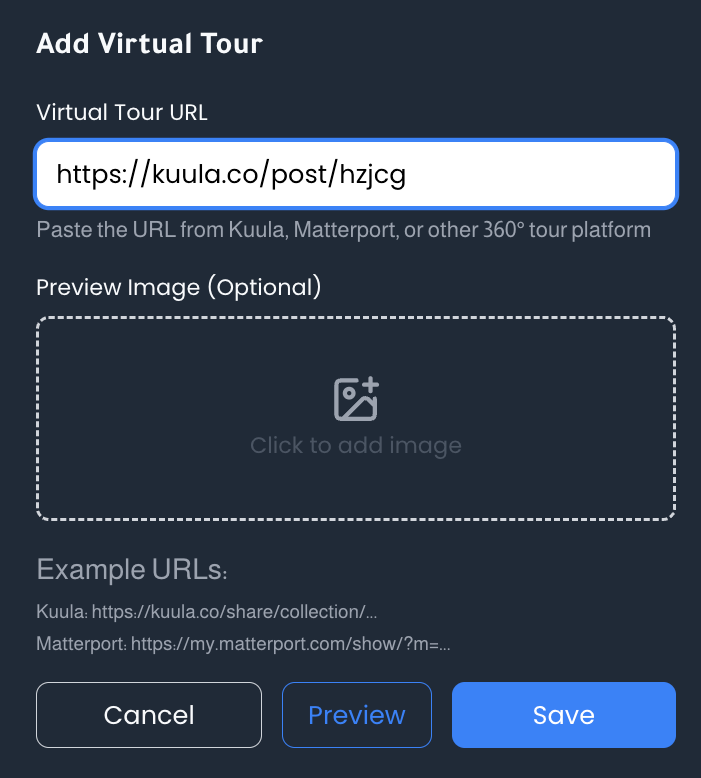
After entering the link, you can press "Preview" to view the tour before saving, then press "Save" to add the tour to your listing.
Step 7: Tour is Ready!
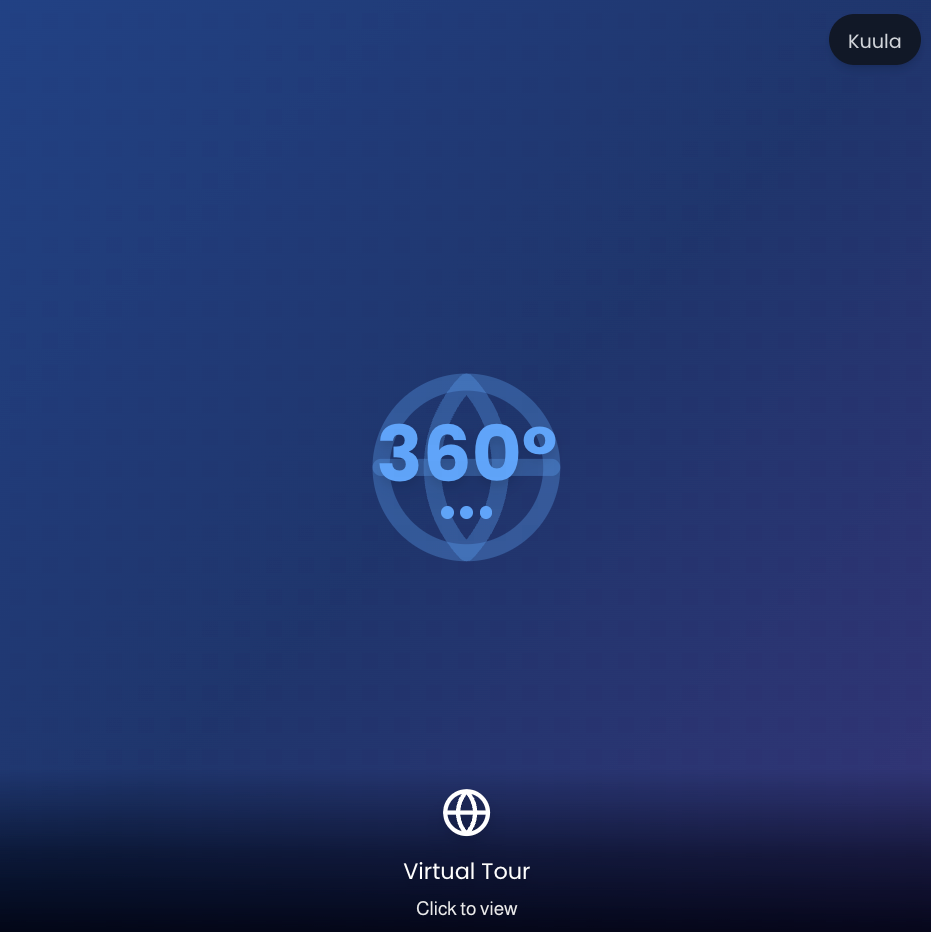
After saving, the virtual tour will appear in your listing with a 360° icon and "Virtual Tour — Click to View" label. When a buyer clicks on it, the interactive tour opens directly.
Important Notes
Adding a virtual tour is optional — you can publish the listing without it.
Listings with a virtual tour attract more interest and increase buyer confidence.
Make sure the link works correctly before saving by using the "Preview" button.
You can add one virtual tour per listing.
Common Issues
- Link doesn't work: Make sure you copied the full link from the tour platform (must start with https://).
- Tour doesn't appear in the listing: Make sure you pressed "Save" after entering the link.
- Tour quality is low: This depends on the photography quality in the original platform (Kuula/Matterport) — improve the photography there.