How to Upload Property Photos?
4 min readLast updated: 2026-03-23
Before You Start
- You must have an active account with Nafath verification
- Prepare high-quality property photos (horizontal preferred)
- Make sure each photo is less than 10MB
- Supported formats: JPG, PNG, WebP
- You can upload up to 10 photos per listing
Steps
- 1Press the "Services" button — from the top menu bar

Services Button - 2Select "Add Listing" — a dropdown menu will appear

Add Listing Button - 3Enter the advertising license number — the license will be matched from REGA with your national ID and Fal license. After successful verification, you'll automatically move to the photo upload stage.
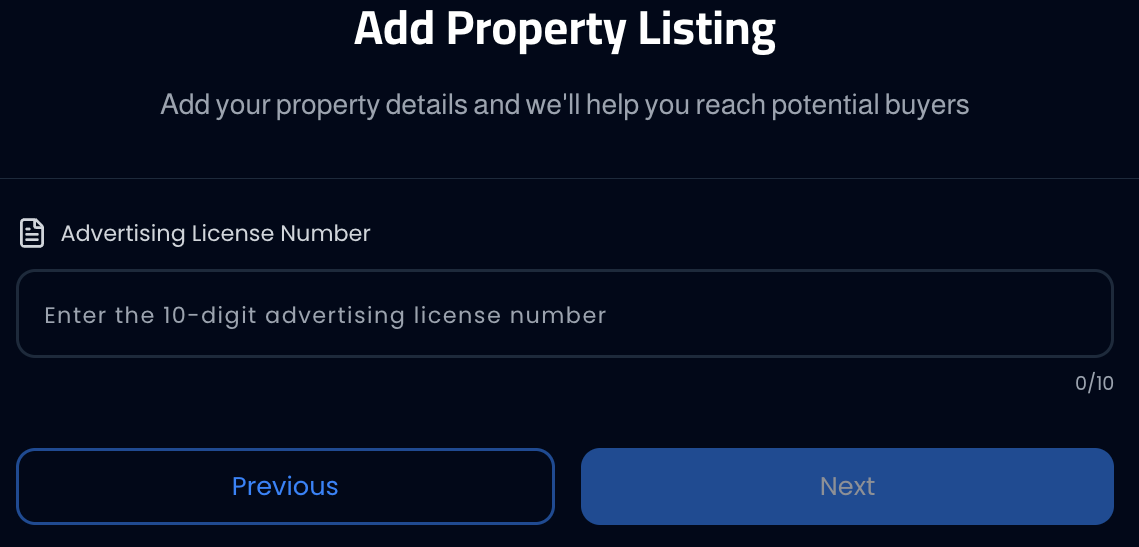
License Number Entry - 4Add property photos — from the "Property Photos" page you'll find three options: Add Photos, Add Video (optional), Add Virtual Tour (optional).

Press "Add Photos" and select photos from your device.
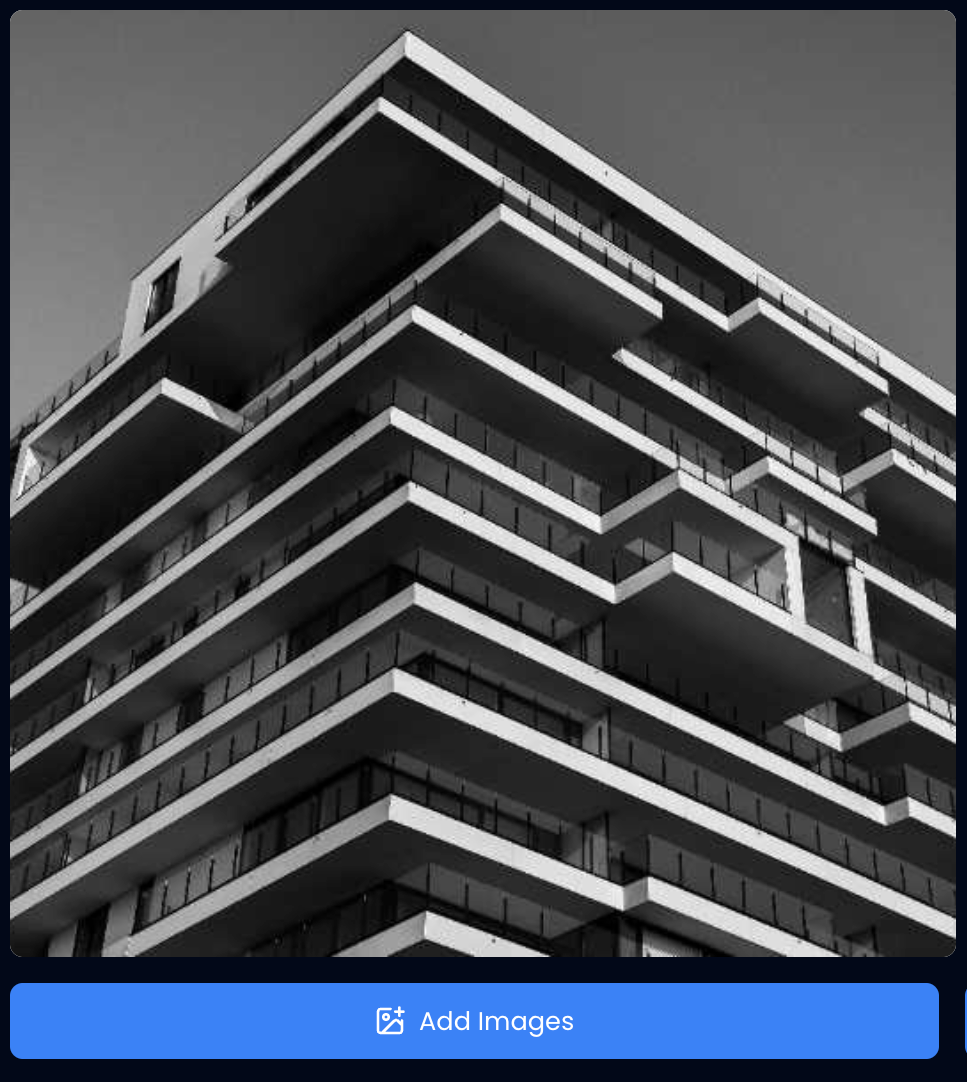
- 1Edit or delete photos — when you hover your mouse (or tap on mobile) over any photo, two icons will appear: Delete (red trash can) and Edit (pencil).

Delete and Edit Icons - 2Use the built-in photo editor — when you press the edit icon, a professional photo editing tool opens with the following features:
- Crop: Crop the image to the desired size
- Finetune: Adjust brightness, contrast, and saturation
- Filter: Apply ready-made filters to the image
- Annotate: Add arrows, lines, rectangles, circles, and text to the image
- Decorate: Add stickers and decorative elements
- Redact: Hide parts of the image (such as numbers or sensitive information)
- Resize: Change image dimensions
- Sticker: Add various stickers
- Frame: Add frames to the image
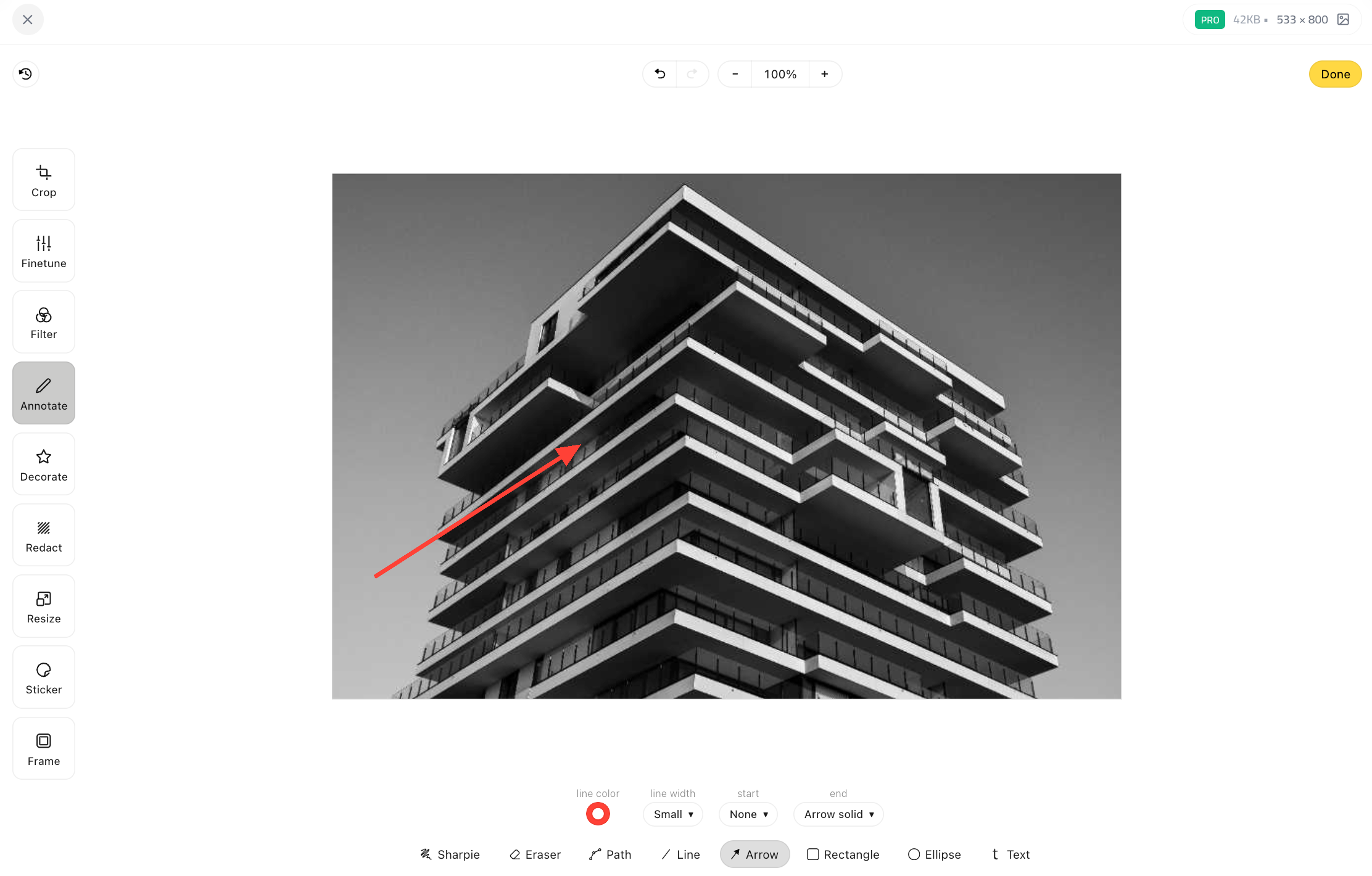
After finishing your edits, press "Done" to save changes.
Important Notes
- You can upload up to 10 photos per listing.
- Horizontal photos with a 16:9 ratio look best.
- Avoid dark, blurry photos or photos with watermarks.
- Photograph all rooms, the facade, entrance, and nearby facilities.
- The first photo will be the cover photo — choose your best photo and place it first.
Common Issues
- Photo won't upload: Check the size (under 10MB) and format (JPG, PNG, WebP).
- Photos appear in low quality: Upload the original photo without compression or resizing.
- I want to change photo order: Drag photos to reorder them — the first photo will be the cover.