How to Add a Real Estate Listing?
Before You Start
- Make sure you are signed in to your account
- Make sure your profile is complete
- Make sure you have a FAL license (real estate marketer license) or an ad authorization number from the Real Estate Authority
Activating Your Real Estate Marketer Account
Before adding any listing, your account must be activated as a real estate marketer. There are two methods for activation:
Method 1: Verify FAL License Directly
Step 1: Click "Verify FAL License"
From your account dashboard, you'll find a "Verify FAL License" button. Click it to start the verification process.
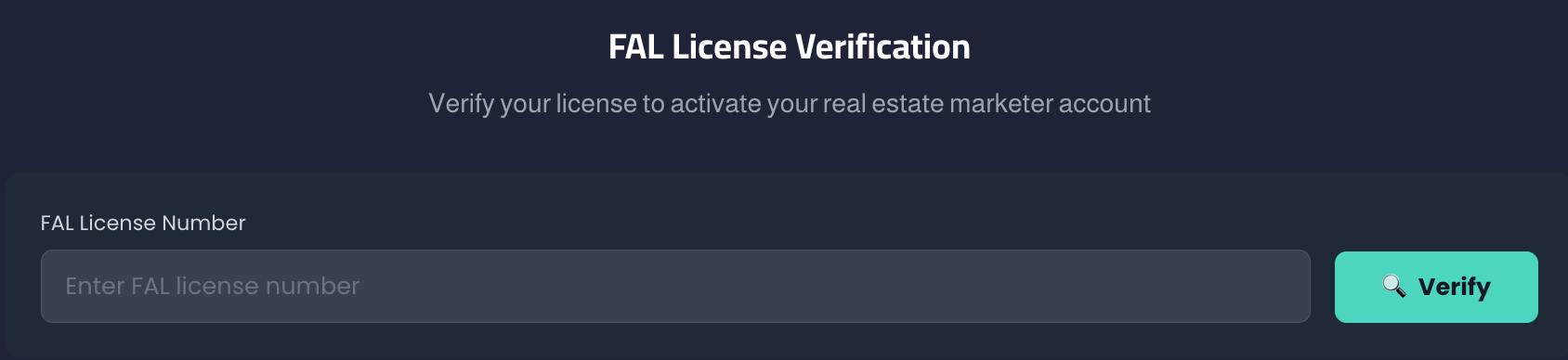
Step 2: Enter Your FAL License Number
A verification page will appear. Enter your FAL license number (real estate marketer license number) in the designated field, then click "Verify". Your account will be automatically activated as a real estate marketer.
Method 2: Add a Listing Directly (Automatic Activation)
You can also activate your account by adding a real estate listing directly. The system will automatically convert your account to a real estate marketer account (whether individual, establishment, or company) using AI.
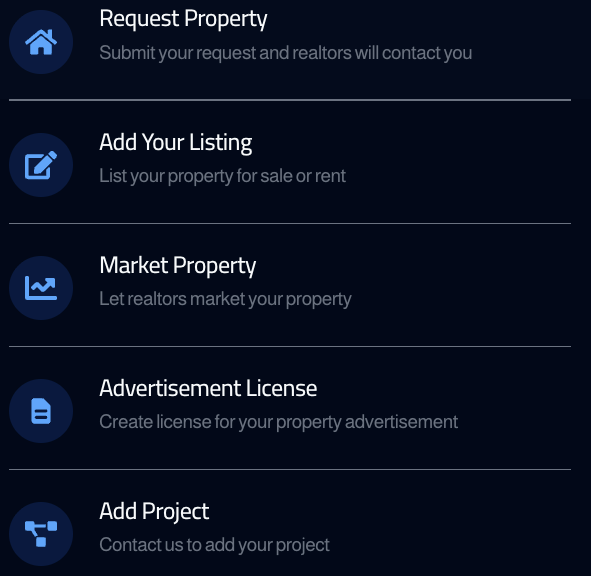
Step 1: Click "Services"
From the top navigation bar, click the "+ Services" button.

Step 2: Choose "Add Your Listing"
A list of available services will appear. Choose "Add Your Listing" — list your property for sale or rent.
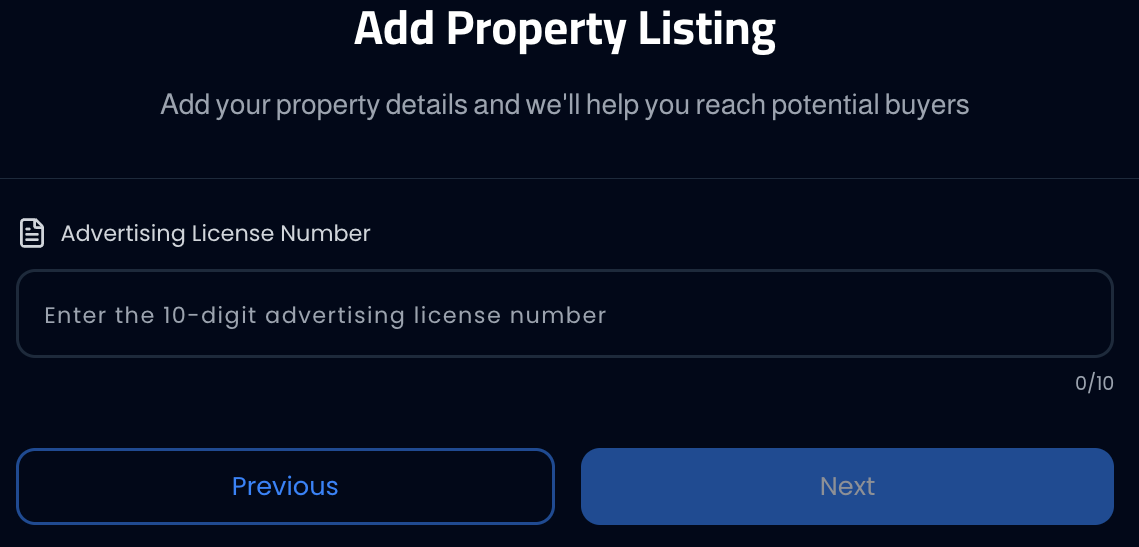
Step 3: Enter the Ad Authorization Number
You'll be directed to the "Add Property" page. Enter the 10-digit ad authorization number (obtained from the Real Estate Authority), then click "Next".
Steps to Complete the Listing
After entering the ad authorization number, it will be automatically verified by the Real Estate Authority. If the license is valid and linked to your national ID and FAL license, you will automatically proceed to the following steps:
- 1Automatic Verification — The ad authorization number is automatically verified and linked to your national ID and FAL license by the Real Estate Authority
- 2Upload Media — Upload high-quality property photos, add a video if available, and 360° panoramic photos if available
- 3Automatic Data Retrieval — The system automatically pulls property data from the Real Estate Authority (location, area, details)
- 4Publish Listing — Click "Publish" and your listing will be automatically published on the platform
Important Notes
- The listing is published automatically after completing the steps — no manual review is needed
- Complete listings with photos, video, detailed description, and 360° panoramic photos get higher visibility in search results
- When you publish your first listing, your account will be automatically converted to a real estate marketer account
- Make sure the ad authorization number is correct and linked to your national ID and FAL license to avoid listing rejection
Common Issues
- Ad authorization number not accepted: Make sure to enter the correct 10 digits issued by the Real Estate Authority
- License error message: Make sure the authorization number is linked to your national ID and FAL license
- Property data not retrieved: Verify the license is correct and try again. If the issue persists, contact technical support